This is default featured slide 1 title

Go to Blogger edit html and find these sentences.Now replace these sentences with your own descriptions..

Apple MacBook Pro

Stunning Retina displayMillions of pixels ahead of its time.One look and it's clear: with over 4 million pixels on the 13-inch model and over 5 million pixels on the 15-inch model, the Retina display on MacBook Pro is an incredible engineering feat. Whether you're retouching professional protography or editing a home in HD.

This is default featured slide 2 title

Go to Blogger edit html and find these sentences.Now replace these sentences with your own descriptions..

This is default featured slide 3 title

Go to Blogger edit html and find these sentences.Now replace these sentences with your own descriptions..

This is default featured slide 4 title

Go to Blogger edit html and find these sentences.Now replace these sentences with your own descriptions..

This is default featured slide 5 title

Go to Blogger edit html and find these sentences.Now replace these sentences with your own descriptions..

Sunday, June 30, 2013

Ubuntu now fits your phone


Introducing the superphone that’s also a full PC
Room for your content

Your phone is more immersive, the screen is less cluttered, and you flow naturally from app to app with edge magic. The phone becomes a full PC and thin client when docked. Ubuntu delivers a magical phone that is faster to run, faster to use and fits perfectly into the Ubuntu family.

Ubuntu phone running the gallery app

Learn more about the design ›

Mobile industry ready

With all-native core apps and no Java overhead, Ubuntu runs well on entry-level smartphones – yet it uses the same drivers as Android. So now it’s easy to bring a better experience to customers all over the world.

Two Ubuntu phones side by side

Learn about working with us ›

Everything developers need

Create gorgeous native apps or lightweight HTML5 apps easily with our SDK. Repurpose web apps fast, so they look and work like their native cousins. With one OS for all form factors, one app can have interfaces for phone and desktop – in just one upload to one store.

Collection of top apps available on Ubuntu phone

Learn more about developing apps ›

Is Ubuntu really the promised land for Windows 8 refugees?

Ubuntu

The rocky release of Windows 8 has left some users wondering about alternatives. Apple’s OS X, though an obvious choice, is an expensive and dramatic switch. Linux is less intimidating – because it’s free. However, users haven’t flocked to the penguin in droves because of its fractured ecosystem, lack of familiar software, and steep learning curve.

Canonical, and the developer community around Ubuntu Linux, have been working to remove these barriers for almost nine years. They seem to be doing a good job, as Ubuntu is now the world’s most popular Linux distribution for desktop and laptop PCs. But does that mean the average user can really replace Windows? Let’s take a look.

Installation and first-time setup

Even installing Linux has often proven a trial in the past. Complicated, arcane installers reliant on command-line navigation or user-created ISOs used to be typical, but Ubuntu has put a lot of effort into resolving this issue, and, for the most part, has succeeded.

Downloading Ubuntu from the official website is easy. There are two well-labeled options: one for users who want cutting-edge features, and another for users who prefer long-term support. Each downloads can be had in 32-bit or 64-bit flavor.

ubuntu2

Ubuntu does rely on third-party utilities to create a boot DVD or USB stick, but the on-site documentation is excellent. Those who don’t want to create their own boot media can try the Windows Installer (named Wubi) or order Ubuntu DVDs for about $10.

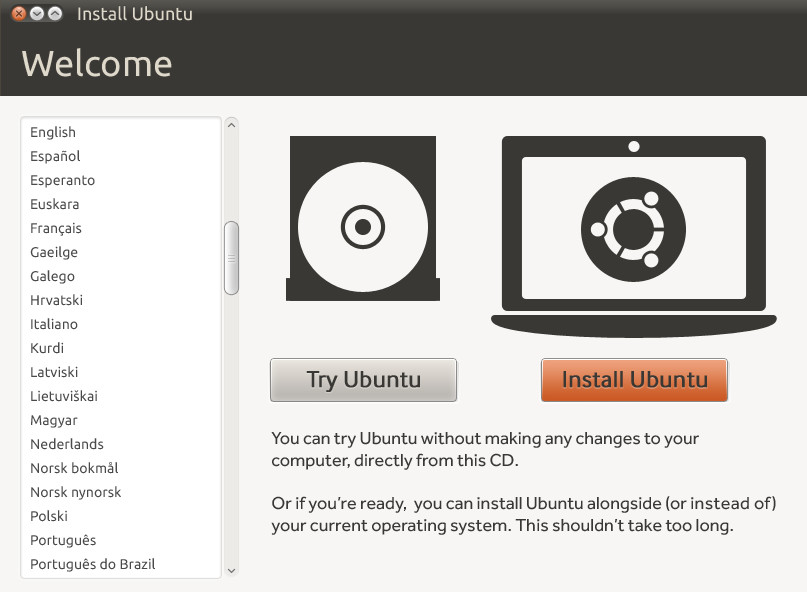
Installation, once it begins, is a breeze. By our watch, the process can be completed in less than 20 minutes. Surprisingly, the look and feel of the installer is on par with Windows and is actually even less confusing. Anyone who has used an installation wizard will feel at home.

installubuntu

Post-installation setup is simple – except when it’s not. Like Windows, Ubuntu will automatically detect hardware and install appropriate drivers. But while the driver database is large, support is still behind Windows, and finding drivers for old hardware can vary from difficult to impossible.

We ran into this issue first-hand when we couldn’t find a driver that worked with the wireless adapter on a six-year-old Acer laptop. Without that driver, Wi-Fi would not work, so we were forced to tolerate Windows, though it ran poorly on the laptop’s ancient AMD single-core processor.

Bundled software

Both Windows and Ubuntu offer basic bundled software. As you’d expect, the software found on Ubuntu is open-source and free. Highlights include LibreOffice, Firefox, and Thunderbird. In 2009, Ubuntu added a Software Center which can be used to download popular Linux applications like Clementine, GIMP, and VLC Media Player.

gimplinux

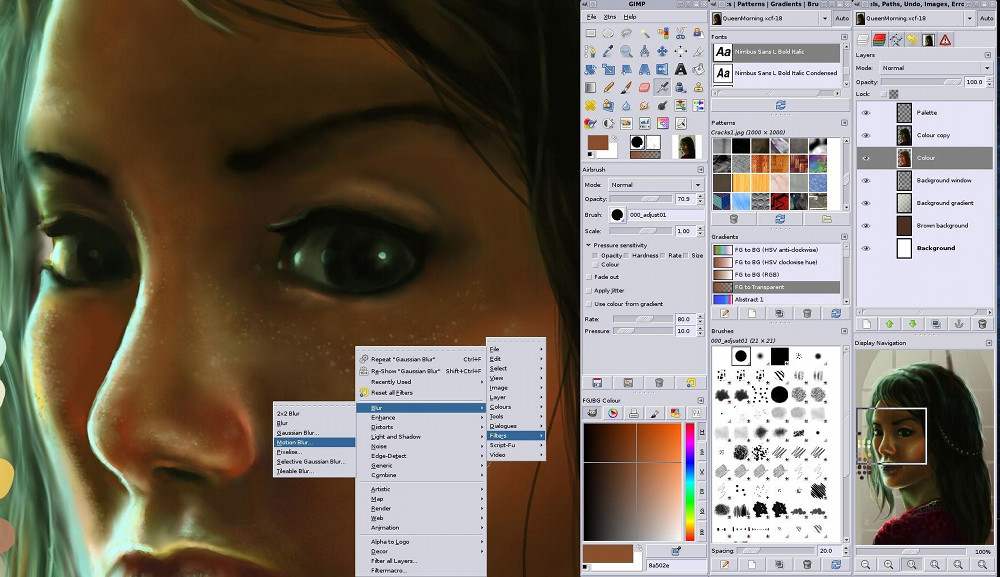
The quality of bundled applications varies. Thunderbird, the e-mail client developed by Mozilla, is roughly on par with any other clients and is easy to understand. LibreOffice is also intuitive and easy to use, but its support of popular Microsoft document formats is a gamble. Other apps, like GIMP, the GNU Image Manipulation Program, are extremely powerful but unfriendly to beginners.

Uneven app presentation and quality has long been an issue for Linux. Ubuntu has tried to solve the problem with easy app installation and a curated app storefront, but some compatibility is still a problem. Many users will want to use apps they’re accustomed to from Windows, but these won’t run on Linux without WINE, a Windows emulator. And that’s opening an entirely different can of confusing, weird, janky worms.

picmonkey

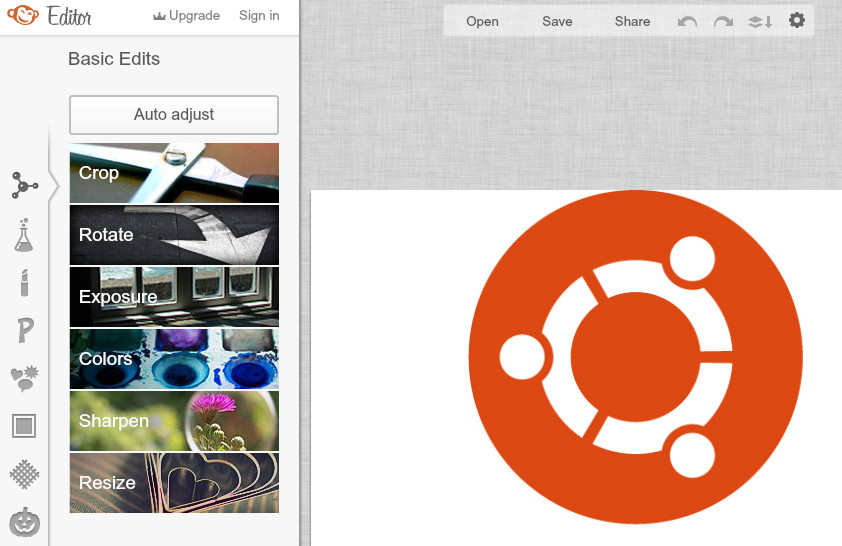
Web apps could be Ubuntu’s savior. LibreOffice is different from Microsoft Office, but Google Docs is identical on Windows and Linux. The same can be said of PicMonkey, WordPress, DropBox, Feedly, Todo.ly, Sketchpad, and any number of other services that can work in a browser rather than on the desktop. While apps like these can’t cover every use, they’re capable of handling most day-to-day tasks that users ask of their PC.

Interface ease-of-use

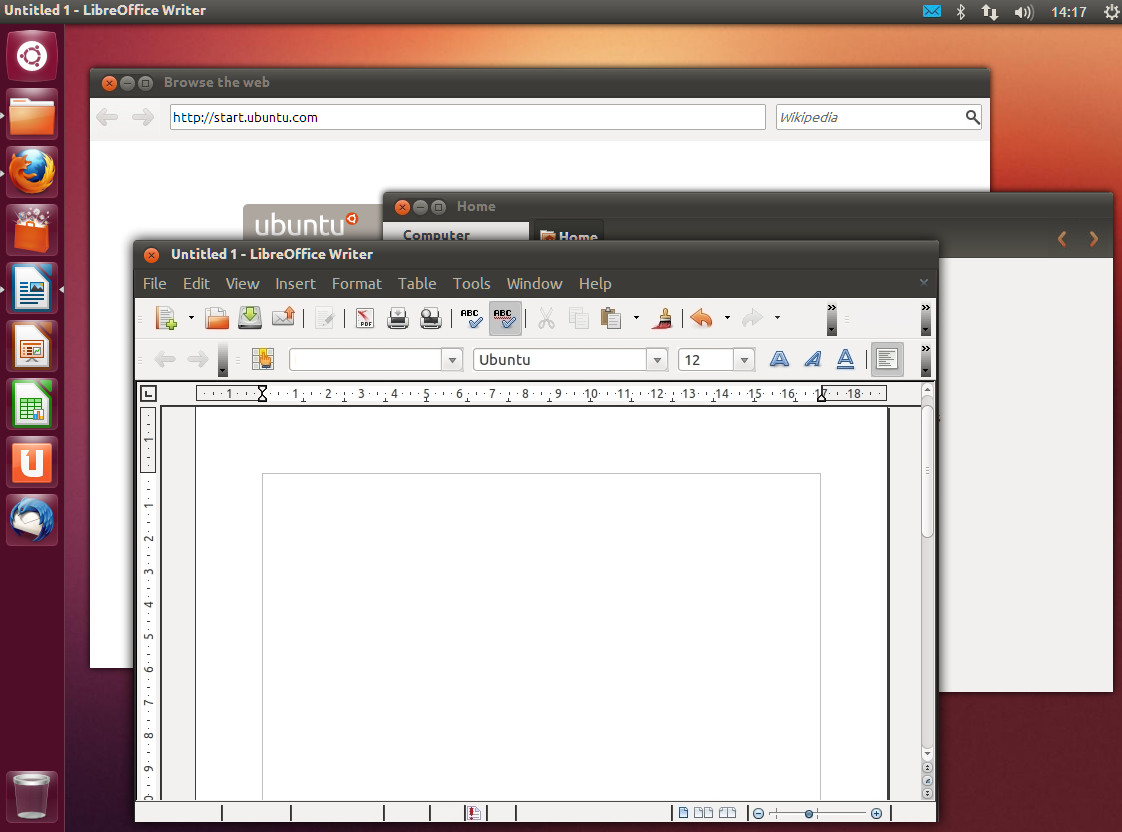
Ubuntu is a bit different from both Windows and OS X. Rather than putting a taskbar or dock at the bottom of the display, a list of apps is instead placed along the left side (by default). This launcher also acts as a multi-tasking tool for quick navigation between apps. Advanced users can rely on keyboard shortcuts as well.

ubuntudesktop

Launcher aside, the basic design elements of Ubuntu should be familiar to anyone crossing over from Windows. Some icons aren’t where Windows users will expect, and the file structure of the operating system will take adjustment, but little effort is required to understand Ubuntu’s differences. Fast learners will adjust in days, while those less accustomed to new technology will need a few weeks to settle in.

A few may even find Ubuntu to be less confusing than Windows. Why? Ubuntu is a small project compared to Microsoft’s mainstay, so it serves up fewer features and there’s less to navigate. This, however, leads a serious flaw.

Features fail

Over the decades, Windows has become a bloated, bulky operating system. But that bloat isn’t the result of inefficiency or poor programming. Much of it goes to numerous features that have been added over the years, many of which are part of Ubuntu’s default install.

Important features like advanced power management, system restore, and parental controls aren’t a part of Ubuntu’s GUI by default. Many of these features can be enabled by digging into settings underneath the GUI or downloading third-party software, but neither choice is optimal for the average user. The lack of robust power management is particularly damning for laptops. Independent reviews have found that a laptop will offer worse battery life when running Ubuntu than it will while running Windows.

Ubuntu was also caught flat-footed by the rise of touch input. Yes, a touch version of the operating system is currently under development for Android smartphones and tablets, but it’s not yet a public release. And this new version is targeting mobile devices, not desktops and hybrid/convertible PCs. Windows 8′s interface is a superior choice for anyone who owns a touch-capable computer.

Still the also-ran

Ubuntu is an attractive and useful operating system. There’s little that it absolutely can’t do, and, in certain situations, it can be even easier to use than Windows. Ubuntu’s store, for example, does a better job of directing users towards useful apps than the mess of a storefront that ships with Windows 8. Ubuntu can serve as a replacement to Windows.

ubuntudesktop2

If your hardware is supported. If you don’t need advanced power management. If you can deal with the lack of Microsoft Office. If …

That’s the rub. Installing and using Ubuntu couldn’t be easier. Actually using it day-to-day is more difficult. There are many small tasks that aren’t as easy on Ubuntu as on Windows, and while none are deal-breakers on their own, they add up. Inexperienced users will have trouble because the operating system isn’t Windows, period. Yet advanced users will be frustrated by how simple tasks can prove difficult due to driver issues, half-baked software, or missing features.

To get the most out of Ubuntu, a user must either be just comfortable enough to adapt without caring about specific features and apps, or so advanced that customization and under-the-hood tweaks are a cinch. And this ideal user must not own a laptop, or a touchscreen PC, as Ubuntu is not at its best on those systems.

Of course, most people don’t fit those thin profiles, which is why Ubuntu remains a small fry despite consumer distrust of Microsoft and the direction of Windows. For most people, on most PCs, Ubuntu remains an alternative rather than the best choice.

Read more: http://www.digitaltrends.com/computing/is-ubuntu-really-an-alternative-to-windows/#ixzz2XhrO80g2
Follow us: @digitaltrends on Twitter | digitaltrendsftw on Facebook

Removing Ubuntu partition from Dual OS with safe


Removing Ubuntu partition from Dual OS with safe

EasyBCD supercharges your Windows PC, allowing you to dual-boot to your heart's content.

Dual-boot with anything you could want.

Windows 8, Windows 7, Windows Vista, Windows XP, Windows 2003    Mac OS X     Linux    BSD

Also boot into legacy systems Microsoft doesn't support: MS-DOS, Windows 9x, Windows ME, and Windows 2000!

A breeze to use. Filled with benefits.

  • Boot anything.

    Windows, Linux, Mac, & BSD! Boot both from and into USB drives, ISO images, virtual disks, and more.

  • Boot anywhere.

    Create bootable USB sticks with repair utilities that you can take with you anywhere.

  • Protect against disaster.

    Create entries to boot into recovery utilities or safe mode to prepare for a rainy day.

  • Painless editing.

    Add, rename, remove, configure, and reorder entries at whim.

  • Solve difficult problems.

    Use EasyBCD to troubleshoot Windows, back up and repair the bootloader, and more.

  • Powerful scripting with NeoGrub

    You'll have the power to hide partitions, change active flags, and create complex boot scenarios.

Download_button

Sunday, June 23, 2013

Windows Phone 8

For all Microsoft has been saying about Windows Phone 8 being the most "personal" mobile operating system and how it's designed for each and every one of us, that's not really anything new. Windows Phone 7 was the same way, putting people -- and the user -- at the center of the experience. Rather, what Windows Phone 8 comes off as is the mobile operating system that Windows Phone 7 should have been.

This is an undeniably familiar experience. In fact, with a handful of exceptions, you really have to make an effort to find glaring differences or updates. Windows Phone 8 is subtle. It's all about tweaking and refining the experience that Windows Phone 7 introduced, and mostly getting right what its predecessor got wrong the first time around.

Windows Phone 8 Home ScreenTiles Are Here to Stay

That's right: Windows Phone 8 is obviously still very much a tile-based experience, so if you weren't a fan of them in the first place, you're unlikely to be convinced here to adopt Windows Phone. The good news is, for those of who do enjoy this particular UI, the live tiles are much better implemented this time around.

For one, the tiles are resizable, allowing for more customization on the homescreen. Granted, they cannot be sized freely; come on, that would simply be chaos. Rather, users can choose from three sizes: large, medium, or small. The first two were available on Windows Phone 7 (they were the column-width rectangle and the square, respectively), but the addition of the small size mixes things up a bit, with four small tiles equivalent to one medium tile.

Aside from adding a little more freedom to customize, it's also more convenient to compress some of your apps into a smaller space with the small tiles and get as many of them showing on the screen at once. I rather enjoy not having to scroll down for miles just to get to one of my home screen tiles, as it kind of defeats the purpose.

As for the content behind the live tiles, they seem to update more frequently and with more information. And perhaps most importantly, the live tile capability works with many more apps now -- ones that are "optimized" for the OS -- allowing them to display info on the fly without launching them. But more on that later.

On that same note of customization, the lock screen now has some added features, like displaying both "detailed" and "quick" statuses from apps of your choice, so you can power on your phone and get the info you need just by glancing at it without unlocking anything.

You can only choose one app from which to pull "detailed" statuses, so choose wisely; I picked the email app, so the sender, subject, and first line of my latest received email is displayed on the lock screen. You have a little more flexibility with "quick" statuses, as you can select five apps, but those offer information only through icons and numbers (e.g. an envelope with a 13 next to it means 13 unread emails, but that's all the info you get).

The image on the lock screen can also be modified to change periodically on its own if you're not one for looking at the same static image every time you power on your phone. But the images don't just have to be pulled from your local camera roll; you can do things like link it up to your Facebook account so pictures of you or your friends are regularly cycled through the lock screen.

Windows Phone 8 CNN AppApps and OS Additions

It's good to see that Microsoft is trying to put more of an emphasis on the way apps integrate with the operating system this time around, especially since both app quality and app selection were somewhat lacking with Windows Phone 7. As mentioned, there are now optimized apps, and they work exceptionally well with both the live tiles (whether or not the app supports the tiles is indicated in the Store) and other aspects of Windows Phone 8.

Apps can now do push notifications, allowing you glean information without having to open the app or, in some cases, without even having to go further than the lock screen. Is there a breaking news story on CNN? I'll now get a buzz on my phone, same as I would if I had received a text message or email. Same goes for Facebook notifications and supposedly the new Data Sense app (used for tracking and making data usage more efficient) can do notifications as well, but I was unable to test that since I was using an AT&T handset and Verizon will be the first carrier to support it.

That being said, the Store -- as it's now called, no more Marketplace -- is a little light on optimized apps at the moment, but I say that more as an observation than a criticism. The Windows Phone 8 isn't even accessible to the public yet, so I can't possibly fault the OS for that when it's simply a matter of it being so young.

But there was still plenty to fool around with for now. A couple of the baked-in apps really impressed me, especially the newly-branded Xbox Music, which synced my library so painlessly when I signed into my Microsoft account on my Windows Phone 8 handset that I at first didn't even realize it had happened. I went to the Xbox Music tile with every intention of finding my previously downloaded songs in the catalog and re-downloading them one by one.

Instead, my whole library was already synced up and I was able to stream all of my songs without having to do a single thing, with the option to download any of them to my phone for local play if I wished. It was fantastic and incredibly efficient. Bravo to Xbox Music.

Windows Phone 8 Kid's CornerAlso impressive, though perhaps in a slightly more subtle fashion, was the new Internet Explorer 10. It's efficient and incredibly fast -- at least compared to the Internet Explorer on Windows Phone 7 -- and all-around just very easy to use. Being able to now find text on a webpage and customize the lone button next to the address bar (instead of reloading the page, you can instead have it take you to your favorites or tabs) are simple but welcome conveniences. It even features built-in security that warns you and blocks any questionable pages that you attempt to visit. Admittedly, there aren't any major, standout changes that were made here, but Internet Explorer 10 absolutely makes for a more comfortable browsing experience now than it was before.

Unfortunately, one app that hasn't seen a whole lot of improvement is the email app. Microsoft touts features like bulk movement and deletion as well as threads, but those are features that have been available since Windows Phone 7.5. It's more or less unchanged, which is a shame because the threads/conversations feature is still an absolute mess.

In case you missed it in my Windows Phone 7.5 review, the email app attempts to sort emails into "conversations", which are essentially threads, but it's an unmitigated disaster. If you have an email thread going on between two or more parties, that isn't necessarily what Windows Phone displays as a conversation. Instead, it has a tendency to pull all recent emails from the same sender and place them into the same conversation.

So if I'm part of a thread that includes someone from whom I received an email recently (on a separate occasion), Windows Phone just takes all of the recent emails from that person and puts them into the same conversation even though their emails are from two or more different threads. It's a nightmare for organization and frustrating when all you want to do is track down a message, only to find that its been stashed in a conversation under a subject line that has nothing to do with the topic of the email. The fact that this rather significant issue has not been fixed in Windows Phone 8 is a massive oversight, in my opinion.

One of the most notable additions to Windows Phone 8 is a feature in which not all users -- myself included -- are going to find use, and that's the Kid's Corner. Nevertheless, it's certainly a good idea on paper: Kid's Corner is meant to give your kids a way to mess around with your phone without the risk of them tampering with things like your work email or your social media outlets.

Once engaged, Kid's Corner is accessed by swiping left from the lock screen, at which point your child is presented with a lock screen of their own. Like the rest of the phone, the Kid's Corner is fully customizable in terms of what apps, games, music, or other content you want to make available there, as well as the color scheme, lock screen image, and even the text displayed on the lock screen.

Windows Phone 8 RoomsThe only issue I have with the Kid's Corner is that it's only effective if you put a password lock on your own lock screen. Otherwise, there's nothing stopping your kid from just powering up the phone and swiping up instead of to the left where the Kid's Corner is located. And while I realize this is just a matter of personal preference, I'd rather not have a password lock on my phone. I think it's a hassle, and I would be more inclined to put some sort of protection on my lock screen if Windows Phone 8 supported gesture or pattern locks (like Android). But instead, it can only do passwords that require you to punch in a four-digit code on a number pad every time you want to unlock your phone.

Another solid idea that's somewhat flawed in execution is the Rooms feature, which basically operates as a central hub of communication for a select group of people. Here, all members of the Room can group chat with each other, make changes or additions to a central calendar (which updates the calendars of all the Room's members), view any pictures that are posted in the Room, and both view and edit any posted notes (the preloaded example on the phone includes a grocery list that all members can view and check off as they pick up each of the items). And setting it up is easy, since all you need to do is create a new Room, name it, and then select people from your contacts list that you want to join, and invites are automatically sent out to them via text message.

Honestly, it's a fantastic idea that works well, but only if all members of the Room are Windows Phone 8 users. See, in what initially seemed like an appealing feature, I found that I could invite anybody from my contacts to a Room, regardless of their mobile operating system, with the understanding that they would only be able to take advantage of the calendar editing and utilize the group chat via a desktop version of Windows Messenger.

However, getting non-Windows Phone 8 users into the Room was easier said than done. Windows Phone 8 first sends a text message to the intended recipient saying that a Room has been set up, and then in a separate text message, it sends a link. The recipient then has to open that link in their phone's browser and go through the process of joining the Room on the Windows Phone website. Sure, that may only seem slightly clunky, but the worst part is that a Microsoft account is required to join the Room.

Windows Phone 8 Wallet AppIf you're not a Windows Phone user, chances are good you don't have a Microsoft account, unless you're one of the hilarious few who had a Hotmail account once upon a time. So either you talk your hopeful Room member into going through the trouble of setting up a new Microsoft account for what amounts to basically a centralized/cloud synced calendar app, or you'll be sitting in your Room all by your lonesome until your friends and family get Windows Phone 8 devices. I applaud Microsoft's effort to reach out to non-Windows Phone (or Windows Phone 7) users, but Rooms just end up being a hassle to set up unless everyone has Windows Phone 8.

But Rooms and Kid's Corners and apps aside, the greatest and easily most important change found in Windows Phone 8 is one that may not always be immediately apparent on the surface. The fact that Windows Phone 8 now supports much more powerful, up-to-date hardware -- including multi-core processors, support for expandable memory, and NFC chips -- makes it a legitimate contender in the mobile OS race.

Now, for example, Windows Phone has a built-in Wallet app for storing credit cards, debit cards, rewards cards, and coupons for local deals, while it can also transfer entire contact entries to other phones with a single tap thanks to its NFC connectivity. Windows Phone 7 was quickly becoming a joke with restrictions that limited its phones to antiquated hardware, like single-core processors, so an update like this really brings Microsoft's smartphone offering back into the fold.

Microsoft Sweats the Small Stuff

That's all there is to Windows Phone 8 as far as the major changes and additions are concerned. So all that leaves is the litany of tweaks that Microsoft has made to the OS, all of which are for the better. They're small changes, but the sort of changes that are welcome in those moments when you find yourself thinking, "You know, I wish I could do X or Y." Well, good news: Windows Phone 8 can do X, Y, and Z.

The camera now has different "lenses", which are essentially apps that utilize the camera in different ways. Take the "Bing Vision" lens, for instance, which is actually currently available on all Windows Phone 7.5 devices: it's basically just a bar code/QR code scanner. But that's what all the camera lenses are like: clever uses for the camera.

As another example, the Lumia models have the City Lens, which is an augmented reality app that lets the user hold up the camera at the surrounding area, which is then tagged on the phone with various POIs. Unfortunately, that's proprietary software and as such was not available on my particular unit, but it's a great idea that shows what kind of potential is here. The lens menu has a "Find more lenses" option, but unfortunately, there doesn't appear to be any available for download at the moment.

Voice recognition, while not a new addition to Windows Phone in and of itself, now has wider support across the platform and can be used for a number of new tasks (as well as the old ones), including Bing searches, Local Scout for nearby POIs, and other app interactions (though not all apps are compatible with the voice recognition). You can even create OneNote documents or texts and dictate their content to the phone. It's a two-way street, too; there's also text to voice translation, with the phone able to read incoming texts to you if you're driving or in a similar no-hands-free situation.

Windows Phone 8 Bing AdditionsFor the frazzled types, there have been tweaks made to the Calendar app, allowing users to hit a single "Late" button when running late for a meeting, which automatically notifies the other attendees of the event that you won't be there on time. Leave your phone behind somewhere in your rush to get to your meeting? There's now also a Find My Phone feature, which users can activate online via the Windows Phone website to track down their missing handset.

Should end up losing your phone for good though, you can take solace in the fact that, through SkyDrive, Windows Phone 8 can easily backup most of your phone's content, including your apps, settings, text messages, and photos.

If you find that you are using your Windows Phone a lot for work, the platform now has support for what it calls "Company Apps," which is more or less a means for your company to add security measures to your handset, allowing them to remotely disable, encrypt, or delete content and settings found anywhere on your phone, even its SD card.

And the rest is just miscellaneous stuff, like the ability to take screenshots (finally!), keyboard improvements, and being able to share one's location via the attachment button in texts. There are also ease of access features (including larger text and sound levels for hearing aids), and tweaks to the Bing search page; instead of merely having a search bar, there are now multiple pages available when you hit the search button, including those for news, local deals, movies, and top videos. They're all relatively minor changes, the sort that you may not even initially notice are there, but they're tweaks that make for a more convenient, seamless experience.

Windows Phone 8 Home Screen 2Conclusion

Let's face it: Microsoft was severely lagging with the dated software that was Windows Phone 7. But with Windows Phone 8, the company has taken a solid core concept and built upon it. Microsoft has breathed new life into its mobile platform and given it an opportunity to succeed by not only adding new features and addressing shortcomings, but also by outfitting it so it can be matched with outstanding hardware. Sure, it's a little buggy and the Store selection is still a little thin (especially as far as "optimized" apps are concerned; it's a shame that Skype isn't here yet), but I don't think those are really going to be lasting issues with Windows Phone 8. It hasn't even technically been released to the public yet, so I'm sure it will be spruced up in no time.

With support for cutting-edge technology like multi-core processors and NFC chips and bolstered by some great software additions and app integration, Windows Phone 8 can now hang with the competition. I'm not going to say that Windows Phone 8 reigns supreme, because what we're seeing now is only its potential. But as long as developers continue to take advantage of what the operating system has to offer and OEMs capitalize on the improved hardware support, it has more than a chance to succeed.

Pros:

  • Support for current-gen hardware, like multi-core chips, expandable memory, and NFC
  • Fantastic app integration, especially with improved live tiles
  • A wealth of customization options

Cons:

  • Problems with threads in the email app still unaddressed
  • Rooms and Kid's Corner features stumble in execution

Bottom Line:

Windows Phone 8 operates like a much more efficient, app-friendly, and customizable version of its predecessor. It's -- almost -- everything Windows Phone 7 should have been.

Saturday, June 22, 2013

Google Android 4.2 Hands On Review

Until recently, applying operating system updates to smartphones and tablets has been a no brainer. But iOS 6 with Apple Maps has given some users pause, particularly if the old OS has no glaring issues. That describes Android Android 4.1, which TabletPCReview praised in comparison to iOS 6, claiming it "offers a clear advantage in two key areas: voice recognition services and maps," and "offers more features and greater customization."

To Google's credit, the search giant has steadily improved Android since hastily launching version 3.0 (Honeycomb) in 2011, making it an OS suitable for both tablets and smartphones. Its latest version is still  code-named "Jelly Bean" like its predecessor, version4.1, but Android version 4.2 brings some excellent new features to Google's mobile operating system, in addition to a general performance boost.

In other words, Google took what was good in 4.1 and made it better in 4.2. Here is the new stuff.

User Accounts

Support for multiple user accounts seems to be the tablet feature du jour. Amazon brought it to the new Kindle Fires earlier this year, and the new NOOK Tablets have something similar with NOOK Profiles. Now, Android has multiple account support. Well, at least Android 4.2 tablets do, as some speculate a Nokia patent is keeping the feature from Android smartphones.

It makes more sense on tablets anyway, as they are more likely than smartphones to be shared by a family. With Jelly Bean 4.2, user accounts are very basic, with one sole account (the "owner") able to create new accounts and delete old ones. Each account must go through the Google Android setup process and once complete, each can apply its own settings and secure login. Android 4.2 supports up to eight total accounts including the owner, and each has its own apps and media, but "any user can accept updated app permissions on behalf of all users," according to an Android prompt. Logging in and out of accounts can be done through the lock screen, which is also accessible through each user's settings drop down.

All told, it's a useful and welcome Android addition, but one that needs work in regards to security and management. The owner should be able to restrict downloads and media, and have more granular control and access to each account. Google will likely bring about these changes in future Android updates, however. We hope.

Android Jelly Bean 4.2 lock-screen widgetsWidget Features

There are two new widget enhancements with Android 4.2. The first is the addition of widgets to the lock screen. Lock screen widgets only include a clock, calendar, Gmail (folders, including G Chats), and a Google Play Music song match similar to SoundHound. A tap and unlock will open the tablet up into the respective app. There is room for five widgets, and the music match is ideally suited for smartphones, especially for those situations where you hear a new song on the radio while driving. The lock-screen music match widget is much easier, and less dangerous, to use in that situation than any other app buried on a homescreen or in the app tray.

The other new feature is that widgets will now automatically resize to fit in crowded home screens when moved. Newly-placed widgets brought in from the app tray will not automatically resize however, and some widgets require a minimum amount of space.

Daydream

Daydream is Google's answer to the screensaver. It can display gallery images and Google Currents info while the device is idle or charging. In use, it seems to slow charging times and consume battery life, and is a relatively useless, but harmless, addition.

Android Jelly Bean NotificationsNotifications

Android has always handled notifications better than iOS, and with Jelly Bean 4.2, users can now expand and manage individual notifications, including those for calls and the calendar. We weren't able to test call notifications as we tested 4.2 on the Nexus 7 tablet. In regards to the calendar, users can now snooze from the notifications dropdown, or expand meeting notifications into a separate popup box when tapped. Photos and screen grabs can now be shared through the notifications as well. It's not revolutionary, but it makes the best that much better, and makes iOS notifications look extremely clunky by comparison.

Accessibility

Couple new accessibility features that open up the Android experience for the visually impaired. Users can now magnify any screen, be it the home screen, an app, or on the web, with three taps, and then navigate with two-finger swipes.

More notably, Gesture Mode combines taps and swipes with speech output to make navigation possible for blind users. Following a minor learning curve, it's an incredibly novel and a surprisingly effective way of using Android Jelly Bean and all its functions.

ios 7 Flattened Affect

I’ve spent a week with iOS 7.

iOS 7

The first time you turn on your phone after installing iOS 7, you’ll feel like Charlie Bucket landing in Willy Wonka’s chocolate factory. Those colors! Those icons! So much neon! You’ve fallen into a world of pure imagination, a place where everything familiar and solid has been flattened, slimmed down, spray painted, and made translucent—but now you’re feeling some regret. Was that golden ticket worth it after all?

When old things are made new, it’s natural to feel both lost and nostalgic, and it’s usually wise to push through your immediate sense of disorientation. Give iOS 7 a few days. Become comfortable with its technicolor aesthetic, lighter type, and spare graphics. Do this and you’ll notice, around Day 3 or 4, that your initial shock has given way to a new emotion: familiarity. Soon that feeling becomes so powerful that you may have trouble remembering what the old iOS looked like.

And then, surprisingly, a new question pops into your head: Wait, is that all there is?

That’s where I am now. It’s been almost a week since I installed Apple’s new mobile operating system on my iPhone 5. (You can get iOS 7 if you’re an iOS developer, or if a kind developer registers your iPhone with Apple. Beware: The OS is still in beta phase, so it’s annoyingly buggy.) Because the software is clearly a work in progress, I’ve tried to give it every benefit of the doubt, and I expect that a lot of it will be improved by the time it’s launched publicly in the fall. At this point, though, I’m puzzled by iOS 7.

For a redesign that’s so immediately jarring and radical, it comes to feel strangely superficial over time. As I used iOS 7, I kept thinking of something Steve Jobs once said: “Most people make the mistake of thinking design is what it looks like,” he told the New York Times Magazine in 2003. “People think it’s this veneer—that the designers are handed this box and told, ‘Make it look good!’ That’s not what we think design is. It’s not just what it looks like and feels like. Design is how it works.”

Yet once I got used to the new icons and typography in iOS 7, there was no next step—no clear payoff for braving the dislocation the new design had caused. What’s this design in service of? How does it improve your phone? Does it make it faster, easier to use, more enjoyable, less annoying? In other words, does iOS 7 change how your device works, rather than just how it looks?

Most of the time, not really. While iOS 7 does introduce several new and useful features—like an immersive new app switcher, a handy finger-swipe gesture to go back to a previous screen, a superfast camera app, and a universal search and address bar in Safari—few of these feel like organic outgrowths of the new aesthetic. The app switcher, back swipe, and faster camera would have been possible and just as useful in the old iOS.

Yes, there are places where the new design does pay off—in the Calendar and Photos app, the lighter type and buttons allow you to see more of your appointments and pictures. Thanks to new transition animations, switching in and out of apps from the home screen feels faster and more fluid. But these improvements are offset by other areas where the lighter design leaves too little of the interface exposed. In a few places, the new touch targets are too small to hit accurately. And while I welcomed the removal of some of the “skeuomorphic” real-world textures that gummed up the old iOS—like green felt and stitched leather—the one-dimensional, line-drawn icons in iOS 7 are sometimes too inscrutable to give you an intuitive sense of what’s going on.

A lot of the redesign feels like aesthetics for aesthetics’ sake—the reflection of design chief Jony Ive’s personal taste for minimalism rather than an effort to improve how the software works. Or, as Jobs might say, it’s just veneer.

Take one of the biggest design innovations in iOS 7, the use of translucent interface “layers” that pile on top of one another. When you look at the home screen, you’ll see two different planes—a layer of app icons on top, and beneath that a layer of wallpaper. You don’t know they’re two layers until you angle your phone; when you do, you’ll notice the top layer of icons shift against the bottom layer of wallpaper, creating the effect of parallax. Then swipe down from the top of the screen to bring down iOS’s Notification Center. In old iOS, this pane was opaque, carrying the texture of faux linen; all such textures have been removed in iOS 7. Now the Notification Center is another translucent plane—just behind it, you can see your app icons, like you’ve brought down a piece of frosted glass over your home screen.

OK, so? How do these planes improve how your phone works? They don’t. The parallax effect is an innovation Ron Popeil of Ronco might prize—it will look great in ads, but on your own phone, having your icon shift position as you move your screen feels gimmicky, purposeless, and mildly irritating. It smacks of unnecessary ornamentation, calling into question Apple’s iOS 7’s marketing copy: “We don’t add features simply because we can, because it’s technologically possible.”

Meanwhile, having the Notification Center sit on glass rather than linen isn’t an obvious improvement, especially because the design changes make Notification Center less informative than the one in iOS 6. iOS 7’s version shows you far less data about your day at a glance, and it makes some bizarre and even unfriendly aesthetic choices. For example, rather than icons depicting the weather—say, an instantly recognizable sun-and-clouds picture—it gives you a written weather report. Three full sentences, in small type, that a radio weatherman might read in a newsbreak: “Partly cloudy conditions with 20 mph winds out of the northwest. …” That’s nuts.

Altogether, the changes make for a design that’s neither an obvious improvement nor a downgrade. Instead, iOS 7 is a step sideways. It’s a bold new look, and depending on your aesthetic sensibility, you’ll either love it or hate it. But that’s as deep as it goes. It doesn’t add many new features to your phone. It doesn’t improve the iPhone’s usability to any great degree (and for smartphone novices, it might well be more difficult to learn than iOS 6). It won’t fix Apple’s problems with data-driven cloud software. Perhaps, over time, iOS 7’s purpose will become apparent; it’s possible that the new design is a foundation for the future of Apple’s mobile software, one whose ultimate utility will be proven over the next few years. That’s the best-case scenario. The more likely outcome is a collective meh.

HTC One review

The HTC One needs to be the best smartphone that HTC has ever made, and also has to compete with the the Samsung Galaxy S4

HTC_One_360_Wide

HTC One review

The HTC One is a smarphone that has been built with one purpose, to revive the ailing fortunes of its maker by being not only the best Android smartphone out right now, but also by remaining the best handset in months to come (Samsung Galaxy S4 we’re looking at you).
To even stand a chance of doing this it’ll need to be as fast as the Google Nexus 4, as beautiful to look at as the Sony Xperia Z and then also boast the kind of feature set that we’ve now seen from the Samsung Galaxy S4.
This then all has to be wrapped up in a Full HD package that won’t weigh a tonne but still boasts a build quality that would make the iPhone bow its head in shame. No pressure then.

HTC One: Size and build

Well to start off with the iPhone 5 can start blushing because in terms of build quality the HTC One is almost flawless. A precision machined aluminium body is then seamlessly joined to the rest of the phone using a technique which leaves no gaps, and we mean none at all.

It’s certainly on a par with Apple’s own standards and even though we’ve only had a short time with the S4 we’re going to go ahead and say that its got that safely beat.
All that aluminium must surely translate into weight then? Well at 143g it’s not the lightest smartphone being safely trumped by both the BlackBerry Z10 and the Galaxy S4. That said it never becomes noticeable instead giving the feeling of being sturdy. This is then carried across with the 137.4 x 68.2 x 9.3mm dimensions which put it as being just slightly thicker than the iPhone 5.
On the top you’ll find the power/lock button and on the side is the volume rocker, which, from a design point- of-view is the weakest aspect of the phone. On the front you’ll notice two rectangular grills which is where HTC has managed to cram two speakers for stereo sound.

HTC One: Features

The One comes with an almost unrecognisable Android 4.1.2 thanks to HTC’s latest version of its Sense UI. Whereas with the HTC One X you could still see hints that there was Google’s operating system lurking underneath the One has almost entirely ditched all of this for a cleaner experience that offers less hassle.
The most notable addition is BlinkFeed, a news aggregator that can be customised using your social networks and by adding a number of compatible news sources. In principle it’s a brilliant idea however we found that day to day it’s just not customisable enough and with only pre-approved news sources available it never truly feels like a rival for Flipboard.
This could of course change over time as more are added but for now it’s just not the revelation we were expecting, something that’s made even more disappointing when you realise that it’s permanently placed as one of your homescreens.

HTC One: Screen

The HTC One comes with a 4.7-inch 1080p Full HD display sporting a ludicrous 468ppi. When you first look at it the effect is actually underwhelming thanks to the large black expanse of an, as yet, unused BlinkFeed, however take a few pictures or head over to YouTube and you’ll soon realise the error of your judgement.
It’s a stunning panel that produces dazzling levels of contrast and colour reproduction and while we know the current trend is to go bigger, we’d argue that HTC has absolutely nailed it with this 4.7-inch offering.

HTC One: Camera

The HTC One sports a 4MP Ultrapixel camera. Yes you saw correctly, Ultrapixel - not Megapixel. All camera sensors are broken up into tiny photosites, each photosite then translates into one pixel so while the HTC One has less of these than most of its rivals, it’s actually still taking up the same amount of physical space because the photosites are much bigger. This means it can collect a lot more light and then in turn produce much better looking photos.
While the Ultrapixel story may prove a tad confusing for buyers, thankfully the theory does translate into real life with the One producing some of the best images we’ve seen from a smartphone camera, so much so that we’d place it in the same league as the Nokia PureView 808. Its ability to capture low light images is exceptional while colour reproduction is outstanding.
Along with the Ultrapixel camera is HTC Zoe, a new feature which takes 20 images whilst also recording a short three second video clip. The advantage of this is that not only do you have a short clip (known as a 'Zoe') for social networks but you can also drag through the video and pick a picture if you’d rather just send a still.

It's unlikely that you're going to be using the Zoe mode on a day to day basis, but that's not to say it's no good. It works really well but if you're going to send a video it'll probably be longer than three seconds and if you wanted to take a picture you'd probably either do it separately or find an app that lets you take a picture while you're recording.

HTC One: Performance

Under the hood you’ll find a 1.7GHz quad-core processor along with 2GB of RAM, which combined makes the HTC One one of the fastest smartphones on the planet. While we would question the need for such an overt amount of power it certainly means that navigating the One is absolutely seamless with no lag whatsoever when gaming, playing video or through heavy multi-tasking.
One thing we will note is that the One did get quite hot when downloading large apps from Google Play or when playing a high-resolution game like Real Racing. While it certainly isn’t as bad as the Xperia Z it definitely seems to be a trend that is appearing as smartphones get more and more processing grunt.

HTC One: Battery

While HTC hasn’t provided an official battery life for the HTC One what we have learnt is that the experience can be wildly differing. We’ve had some comments complaining that the battery life is woefully bad whilst others describe it as on par. In fact we’d differ with all of these and say that it’s actually not bad at all.
If you’re going to spend your day mainly texting, tweeting and browsing then you’ll get a comfortable day's usage with the One finally beginning to complain by the late evening. If however your commute is filled with Real Racing, heavy data usage and a serious dose of YouTube then we’d probably recommend having a charger at work.

HTC One: Verdict

The HTC One has placed Samsung in a unique position. When the Samsung Galaxy S3 came out it simply became the best Android smartphone available making it the only true rival to Apple’s iPhone by default.
With the Galaxy S4 however things have changed, HTC has been suffering from declining sales and in order to regain a fraction of its lost market share the company needed to not only create the best phone it has ever made but also the best Android phone.
So while Samsung’s upcoming sequel may appear to be a veritable powerhouse we can confidently say that the HTC One is the best Android smartphone you can buy right now.
HTC One release date: 29 March 2013
HTC One price: £519.99